 org.nvim
Images and LaTeX previews
Table of Contents
- 1. How to use this file
- 2. Before you start: can your terminal show images?
- 3. Image links: which links get a picture
- 4. Showing and hiding: counts and commands
- 5. Size of images
- 6. Alignment
- 7. Where the picture goes: placement
- 8. Previews when a file opens: #+STARTUP
- 9. Previews that follow <Tab>
- 10. Remote images
- 11. Your own preview functions
- 12. LaTeX fragments: the syntax
- 13. LaTeX environments
- 14. Showing and hiding LaTeX: counts and commands
- 15. What LaTeX rendering needs
- 16. No images? Pretty entities
- 17. Troubleshooting
- 18. Further reading
1. How to use this file
This file shows how org.nvim draws images in place of image links, and
LaTeX formulas in place of their source, like Emacs' org-link-preview
(C-c C-x C-v) and org-latex-preview (C-c C-x C-l).
Everything here is plain text first: an image link is [[file:x.png]] and
a formula is $e^{i\pi} + 1 = 0$. A preview is only a picture drawn over
that text by the terminal. Nothing in the file changes when you preview,
so you can preview, hide and preview again as often as you like.
- The file starts folded (
#+STARTUP: overview). Put the cursor on a heading and press<Tab>to open it;<S-Tab>cycles the whole buffer. uundoes any edit, andgit checkout examples/21-images-latex.orgrestores the file.g?lists every key of the buffer.<prefix>means<leader>o(the defaultmappings.prefix). Withexamples/minimal_init.luathe leader is<Space>, so<prefix>xvis<Space>oxv.- Emacs keys work too (
:h org-emacs-keys):<C-c><C-x><C-v>is<prefix>xv,<C-c><C-x><C-l>is<prefix>xl.
Start Neovim from the repository root with the bundled init file, so your own config is not involved:
nvim -u examples/minimal_init.lua examples/21-images-latex.org
examples/minimal_init.lua only sets a leader key, agenda files, capture
templates and a scratch org_directory; it leaves every image and LaTeX
option at its default, which is what this file assumes.
Read "Before you start" first: previews need a terminal that can draw images. If yours can't, the file still teaches the syntax, and the section "No images? Pretty entities" gives you a text-only fallback.
1.1. Keys in this file
| Key | Emacs key | What it does |
|---|---|---|
<prefix>xv |
<C-c><C-x><C-v> |
preview image links (toggle) |
4<prefix>xv |
C-u C-c C-x C-v |
hide previews (here / entry) |
16<prefix>xv |
C-u C-u C-c C-x C-v |
preview the whole buffer |
64<prefix>xv |
hide every link preview | |
1<prefix>xv |
C-1 C-c C-x C-v |
also links with a description |
11<prefix>xv |
whole buffer, with descriptions | |
<prefix>xV |
<C-c><C-x><C-M-v> |
redraw every image link |
<prefix>xl |
<C-c><C-x><C-l> |
preview LaTeX (toggle) |
4<prefix>xl |
C-u C-c C-x C-l |
hide the entry's LaTeX |
16<prefix>xl |
C-u C-u C-c C-x C-l |
LaTeX of the whole buffer |
64<prefix>xl |
hide all LaTeX previews | |
<C-c><C-x>\ |
C-c C-x \ |
toggle pretty entities |
:checkhealth org |
which backend draws images |
A count is typed before the key, as usual in Vim: 16<Space>oxv. It
plays the role of Emacs' C-u prefixes (4 = C-u, 16 = C-u C-u).
2. Before you start: can your terminal show images?
A terminal is a grid of characters; drawing a picture in it needs a
graphics protocol. org.nvim asks a backend to draw, chosen with
ui.images.backend (default "auto", the first that works):
"native"(vim.ui.img): Neovim 0.13 or newer, in a terminal with the Kitty graphics protocol (kitty, Ghostty, WezTerm). Not through tmux."snacks": the image module of snacks.nvim. Works in tmux withset -g allow-passthrough on. Good for Neovim 0.11 and 0.12."image.nvim": the 3rd/image.nvim plugin.- none: no previews, and a message saying why.
Try: run :checkhealth org and scroll to the section "org.nvim image
and LaTeX previews".
Expect: a line such as "Neovim 0.13.0 (has vim.ui.img), running directly in the terminal", then either "OK image backend: native" (or snacks / image.nvim), or a warning with advice. Below it, "LaTeX previews render with: dvipng" (or another process), or a note that no renderer is installed.
| Where you run Neovim | What to expect |
|---|---|
| kitty or Ghostty, Neovim 0.13+ | native: everything in this file |
| WezTerm, Neovim 0.13+ | native (partial Kitty support) |
| Neovim 0.11 and 0.12 | only with snacks.nvim / image.nvim |
| inside tmux | snacks.nvim + allow-passthrough |
| inside zellij | no backend can draw |
| over SSH | works; files live on the server |
| Terminal.app, iTerm2, Alacritty, … | no native / snacks; maybe image.nvim |
Things to know before pressing any key:
- Only PNG can be sent to the terminal. Other formats (JPEG, SVG, GIF…)
are converted with ImageMagick (
magick); without it you get "can't convert … to PNG". - The first preview may pause for up to one second while org.nvim asks
the terminal whether it speaks the Kitty protocol (in tmux nothing
answers). Setting
ui.images.backendto a name skips that question. - An image is shown only when all of it fits in the window. Make the
window tall enough (or
:only) if a preview leaves blank rows.
3. Image links: which links get a picture
A link is previewed when it points to an existing file whose extension
is one of ui.images.extensions (png, jpg, jpeg, gif, webp, bmp, svg,
tif, tiff, avif, xbm, xpm, pbm, pgm, ppm, pnm) and it has no
description. The file path is relative to the directory of this file,
so the pictures of the org.nvim demo live at
../docs/media/demo/img/.
3.1. The three ways to write a file link
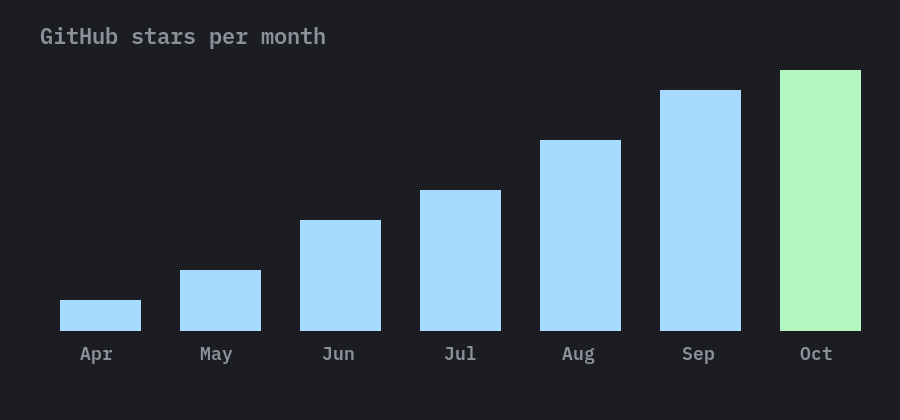
All three links below point to the same picture (a small star chart, 900x420 pixels). Each one is previewed.
A bracket link, alone on its line:
A plain link:
An angle link:
Try: put the cursor on the heading of this section ("The three ways to
write a file link") and press <prefix>xv.
Expect: the message [current section] Displaying 3 images inline, and
the three links replaced by the star chart. The text after the plain and
angle links (nothing here) would move right to make room.
Try: move the cursor onto the line of the bracket link.
Expect: the link text shows again, with the picture under the line, so you can edit the link. Move off the line and the picture is back in place. This happens only in the current window.
Try: on the bracket link itself press <prefix>xv again.
Expect: [image at point] Inline link previews turned off (removed 1
images). On a link, <prefix>xv toggles that one link; elsewhere in
the entry it always shows the entry's links.
3.2. A second picture and a JPEG
A PNG photo (960x420):

A JPEG (360x270); it needs ImageMagick for the native backend:

Try: <prefix>xv on this heading.
Expect: [current section] Displaying 2 images inline. Without
magick installed the JPEG fails with a "can't convert … to PNG"
warning and only the PNG shows.
3.3. Links with a description are not previewed
A description is text you chose to show instead of the link, so by default it stays text, like in Emacs:


Try: <prefix>xv on this heading.
Expect: [current section] No images to display inline. Use a count of
16 or 11 to preview the whole buffer (the section has no link without a
description).
Try: now type 1<prefix>xv (count 1 = Emacs C-1) on this heading.
Expect: [current section] Displaying 2 images inline (including images
with description). A count of 1 also previews links that have a
description, using their target.
3.4. A thumbnail as the description
There is one exception: when the description is itself a single image
link, that image is shown. This is how you make a clickable thumbnail:
the picture shows, and <CR> on it still opens the web page.
Try: <prefix>xv on this heading.
Expect: [current section] Displaying 2 images inline: the wizard (if
ImageMagick is installed) and the star chart, while the links still point
to the web sites.
3.5. attachment: links
An attachment: link names a file in the entry's attachment directory
(see :h org-attach and 13-links.org). This entry
sets that directory with a DIR property to the demo image folder, so
attachment:stars.png is ../docs/media/demo/img/stars.png.
3.5.1. Entry with attachments


Try: open this entry (<Tab> on its heading) and press <prefix>xv
on the heading "Entry with attachments".
Expect: [current section] Displaying 2 images inline: the chart and
the photo, found through the DIR property.
3.6. Links that are never previewed
These are left alone on purpose (like Emacs). Try <prefix>xv on this
heading: the message says there is nothing to display, because none of
the links below qualifies.
- A link to a file that is not an image: minimal_init.lua
- A web link without
ui.images.remote(default"skip"):
- A link inside a source block:
[[file:../docs/media/demo/img/stars.png]]
- A link in an example block:
[[file:../docs/media/demo/img/stars.png]]
- A link on a fixed-width line (it starts with a colon and a space):
[[file:../docs/media/demo/img/stars.png]]
Expect: [current section] No images to display inline. Use a count of
16 or 11 to preview the whole buffer.
Links in property drawers, export and comment blocks, and links to files that don't exist are skipped too.
4. Showing and hiding: counts and commands
4.1. The key and its counts
<prefix>xv decides what to do from where the cursor is and from the
count. Without a count:
- on a link: toggle that link's preview;
- elsewhere: show the previews of the current entry (the text from the heading above the cursor to the next heading). Pressing it again shows them again; it does not hide.
With a count:
| Count | Emacs | Effect |
|---|---|---|
| 4 | C-u |
hide the preview under the cursor, or else |
| every preview of the entry | ||
| 16 | C-u C-u |
show every image link of the buffer |
| 64 | C-u C-u C-u |
hide every link preview of the buffer |
| 1 | C-1 |
like no count, but include described links |
| 11 | whole buffer, described links included | |
| other | whole buffer, described links included |
In Visual mode, <prefix>xv works on the selected lines: select a few
lines with V and press it.
Try: 16<prefix>xv anywhere.
Expect: [buffer] Displaying N images inline, with N the number of
previewable links in the whole file (the links of the sections above; the
exact number depends on what you have toggled, and on the JPEG converting).
Try: 64<prefix>xv.
Expect: [buffer] Inline link previews turned off (removed N images)
and every picture gone.
Try: in the section "The three ways to write a file link" select the
three link lines with V and j, and press <prefix>xv.
Expect: [region] Displaying 3 images inline.
4.2. Ex commands, with ranges
Each key has an :Org command. A range limits it to those lines; a
number after the name is the count.
| Command | Emacs name |
|---|---|
:[range]Org link_preview [N] |
org-link-preview |
:[range]Org link_preview_region [linked] |
org-link-preview-region |
:[range]Org link_preview_clear |
org-link-preview-clear |
:Org link_preview_refresh |
org-link-preview-refresh |
:[range]Org latex_preview [N] |
org-latex-preview |
:[range]Org clear_latex_preview |
org-clear-latex-preview |
Without a range, link_preview_region, link_preview_clear and
clear_latex_preview act on the whole buffer. The old Emacs names work
as well: toggle_inline_images, remove_inline_images,
redisplay_inline_images, toggle_latex_fragment and
preview_latex_fragment.
Examples to type:
:Org link_preview 16- the same as
16<prefix>xv. :%Org link_preview_region- preview every image link of the file (no message).
:%Org link_preview_region linked- the same, described links too.
:.,+10Org link_preview_clear- hide the previews of the next ten lines.
:Org link_preview_clear- hide all of them.
Try: :%Org link_preview_region linked, then :Org link_preview_clear.
Expect: every picture of the file appears (the described links of "Links with a description are not previewed" too), then every one disappears.
4.3. Redrawing: <prefix>xV
<prefix>xV (:Org link_preview_refresh, Emacs C-c C-x C-M-v) reads
the image files again and redraws every image link of the buffer. Use it
when:
- you replaced an image file on disk,
- the terminal was cleared or reset and the pictures vanished,
- you changed the font size and the images have the wrong size.
Try: <prefix>xV.
Expect: every previewable link without a description shows its picture, whatever was shown before.
5. Size of images
5.1. The default: the image's own size, capped
By default (ui.images.actual_width = true) an image is drawn at its own
pixel size, converted to terminal cells, and made smaller when it is
larger than:
ui.images.max_width(default"fill-column": 'textwidth', else 70 columns; also"window", a number of pixels, or a fraction of the window), andui.images.max_height(default 24 rows).
The star chart is 900 pixels wide, so in most terminals it is shrunk to about 70 columns.
5.2. Asking for a width with #+ATTR_ORG
A #+ATTR_ORG: :width line right above the paragraph of the link asks
for a width. It is used only when actual_width is false or a list
like { 300 } (Emacs org-image-actual-width nil or (300)), so the
examples below sit under a heading whose ORG-IMAGE-ACTUAL-WIDTH
property turns that on for this subtree only.
5.2.1. Widths from #+ATTR_ORG
300 pixels:
Half the text width (a percentage):
A fraction from 0 to 2 of the text width:
Try: <Tab> to open this entry, then <prefix>xv on its heading.
Expect: [current section] Displaying 5 images inline: the chart at
300 px, at 150 px, at half and at 3/10 of the text width, and the photo at
its own size (capped by max_width). A pixel width becomes columns
through the terminal's cell size, so 300 px is about 30 columns in a
terminal with 10-pixel-wide cells.
Try: change :width 300 to :width 100 and press <prefix>xv again.
Expect: the first chart gets smaller.
5.2.2. A fixed width for every image
Try: <prefix>xv on this heading.
Expect: both pictures 200 pixels wide; the :width 600 is ignored.
5.2.3. A default width when #+ATTR_ORG has none
Try: <prefix>xv on this heading.
Expect: the first chart 400 pixels wide, the second 120.
5.3. Setting it for every file
The property is handy for one subtree. For all files, set the option in
your setup():
require("org").setup({
  ui = { images = { actual_width = false, max_width = "window", max_height = 30 } },
})
To experiment without restarting, change the live config and preview again:
:lua require("org.config").opts.ui.images.actual_width = 250
A #+PROPERTY: ORG-IMAGE-ACTUAL-WIDTH nil line at the top of a file sets
it for that file. If #+ATTR_ORG has no readable :width, another
#+ATTR_HTML: or #+ATTR_LATEX: width is used (when it is pixels, a
percentage or a fraction).
6. Alignment
An image link alone in its paragraph (nothing else on its line, no text
line right above or below it) can be drawn left (default), centered or
at the right, with :align or :center t on #+ATTR_ORG, or for every
image with ui.images.align. Only the native backend (vim.ui.img) can
do this; with snacks.nvim and image.nvim images stay left.
This line is part of the same paragraph as the link above.
Try: <prefix>xv on this heading (native backend, a wide window).
Expect: [current section] Displaying 4 images inline: a centered chart,
a chart against the right edge of the text, a centered photo, and a
last chart at the left.
The allowed values are left, center and right. Anything else is an
error that :Org lint reports as invalid-image-alignment (see
22-extras.org).
7. Where the picture goes: placement
ui.images.placement chooses where images are drawn:
"inline"(default)- the picture replaces the link: its top row is on the link's line at the link's column, the rest in blank rows under the line. Several images on one line sit side by side. On the cursor line the text shows again with the picture below it.
"below"- the picture is drawn under the line at the link's column, and the link text is left as it is (images of one line are stacked).
Two images and some text on one line:
Before middle after.
Try: <prefix>xv on this heading. Then switch the placement and
preview again:
:lua require("org.config").opts.ui.images.placement = "below"
and 64<prefix>xv followed by <prefix>xv here.
Expect: with "inline" the words "Before", "middle" and "after" are
separated by the two pictures; with "below" the whole line of text
stays readable and the two pictures are stacked under it. Set it back to
"inline" afterwards.
8. Previews when a file opens: #+STARTUP
Emacs' org-startup-with-inline-images and
org-startup-with-latex-preview are the #+STARTUP: words:
| Word | Effect when the file opens |
|---|---|
linkpreviews |
preview the image links |
inlineimages |
the same (older name) |
nolinkpreviews |
don't (overrides ui.images.startup) |
noinlineimages |
the same |
latexpreview |
preview every LaTeX fragment |
nolatexpreview |
don't |
The last word of a pair wins. The options ui.images.startup and
ui.latex_preview.startup set the default for all files.
This file does not use them, so it opens fast and as text.
Try: change the first #+STARTUP: line of this file to
#+STARTUP: overview linkpreviews latexpreview
save with :w and reopen with :e.
Expect: the previewable links and (if a renderer is installed) the
formulas are drawn as soon as you open their sections. Undo the change
(u, :w) or git checkout the file afterwards.
9. Previews that follow <Tab>
With ui.images.cycle_display = true (Emacs
org-cycle-link-previews-display), <Tab> takes care of the previews:
showing an entry's children previews its own links, showing the whole
subtree previews all of them, and folding it removes them.
Try:
:lua require("org.config").opts.ui.images.cycle_display = true
then fold everything with <S-Tab> (until OVERVIEW) and press <Tab>
on the heading "Image links: which links get a picture" (once, then
twice, then three times).
Expect: first nothing (that entry has no links of its own), then every picture of its subtrees, then none again when it folds.
10. Remote images
http(s) links to an image file are not previewed by default. The
option ui.images.remote (Emacs org-display-remote-inline-images)
changes that:
"skip"(default)- never.
"download"- fetched with
curlat every preview. "cache"- fetched once into
stdpath("cache")/org/remote-images, and again with<prefix>xV.
Try: with curl and ImageMagick installed and an internet connection:
:lua require("org.config").opts.ui.images.remote = "cache"
then <prefix>xv on this heading.
Expect: the Org unicorn logo (an SVG, converted to PNG). With the
default "skip" the message is [current section] No images to display
inline....
11. Your own preview functions
A link type can provide its own picture (Emacs org-link-set-parameters
:preview). The function gets the link's path and returns an image file
(or nil). For example, thumb:NAME links showing
~/thumbs/NAME.png:
require("org.ui.images").set_preview("thumb", function(path, ctx)
  return vim.fn.expand("~/thumbs/" .. path .. ".png")
end)
A preview function may also start a download and return true, then
call ctx.callback(file) when the file is ready. The same function can
be set as links.types.<type>.preview. See :h org.ui.images.set_preview().
12. LaTeX fragments: the syntax
A LaTeX fragment is math written inside the text. Org recognizes four
delimiters, plus whole environments (next section). Every fragment below
can be previewed with <prefix>xl; they are also exported as math to
HTML (MathJax) and LaTeX (see 19-export.org).
12.1. Inline math with $…$
The most common form. The rules (same as Emacs):
- no blank right after the opening
$, and none right before the closing one; - the character after the closing
$is a blank, punctuation, or the end of the line; - the opening
$must not follow another$.
These are fragments:
- Euler's identity: \(e^{i\pi} + 1 = 0\)
- A single letter: the variable \(x\) is real.
- At the end of a sentence: the energy is \(E = mc^2\).
- In parentheses: (see \(\alpha + \beta\))
These are not fragments, so they are never previewed:
- The price is $ 5 and $ 10.
- From $5 to $10 is a range, not math.
- Verbatim
$x$and code$y$stay text.
Try: <prefix>xl on the heading of this section.
Expect: Creating LaTeX previews in section... then Creating LaTeX
previews in section... done., and the four formulas of the first list
drawn as images, each scaled to one text row. The second list stays text.
12.2. Three more delimiters
\(...\)is inline math, like$...$but without its rules: \(a^2 + b^2 = c^2\)\[...\]is display math: \[ \sum_{k=1}^{n} k = \frac{n(n+1)}{2} \]$$...$$is display math too: \[\int_0^1 x^2\,dx = \frac{1}{3}\]
The Gaussian integral on a line of its own:
\[ \int_{-\infty}^{\infty} e^{-x^2}\,dx = \sqrt{\pi} \]
Try: put the cursor on the \int of the Gaussian integral and press
<prefix>xl.
Expect: Creating LaTeX preview... then ... done., and only that
formula is drawn. Press <prefix>xl again on it: LaTeX preview
removed. On a fragment the key toggles that fragment.
12.3. Fragments over several lines
A fragment may span lines of the same paragraph:
The quadratic formula \( x = \frac{-b \pm \sqrt{b^2 - 4ac}}{2a} \) solves every quadratic equation.
\[ \det \begin{pmatrix} a & b \\ c & d \end{pmatrix} = ad - bc \]
With Neovim 0.11+ and the native backend, the other lines of a multi-line fragment are hidden while it is previewed, and the image starts on its first line; the cursor on any of its lines shows the text.
Try: <prefix>xl on this heading.
Expect: two images; the second one hides the lines of the determinant.
12.4. Fragments in headlines, tables and #+CAPTION
Fragments also work in headlines, table cells and the parsed keywords
#+TITLE, #+CAPTION, #+AUTHOR, #+DATE and #+SUBTITLE:
| Name | Formula |
|---|---|
| circle area | \(A = \pi r^2\) |
| sphere | \(V = \frac{4}{3}\pi r^3\) |
Try: <prefix>xl on the heading of this section ("Fragments in
headlines, tables and #+CAPTION").
Expect: three formulas drawn: the r of the caption and the two table
formulas (the table is not realigned). The headline formula below belongs
to the child entry "The golden ratio": press <prefix>xl on that heading
to draw it and the one in its text.
12.4.1. The golden ratio \(\varphi = \frac{1 + \sqrt{5}}{2}\)
The number \(\varphi\) is about 1.618.
13. LaTeX environments
A \begin{NAME} … \end{NAME} at the start of a line, with the
\end line alone on its line, is an environment. It is rendered as a
whole, like in a LaTeX document.
Maxwell's equations:
\begin{align*} \nabla \cdot \mathbf{E} &= \frac{\rho}{\varepsilon_0} \\ \nabla \times \mathbf{B} &= \mu_0 \mathbf{J} + \mu_0 \varepsilon_0 \frac{\partial \mathbf{E}}{\partial t} \end{align*}A numbered equation:
\begin{equation} f(x) = \sum_{n=0}^{\infty} \frac{f^{(n)}(a)}{n!} (x - a)^n \end{equation}A matrix:
\begin{equation*} A = \begin{bmatrix} 1 & 2 \\ 3 & 4 \end{bmatrix} \end{equation*}
Try: <prefix>xl with the cursor on the \begin{align*} line.
Expect: Maxwell's two equations drawn as one aligned image. Then
<prefix>xl on the heading: all three environments.
Environments are skipped inside source, example, export and comment blocks: the one below is code, not math.
\begin{equation}
  x = 1
\end{equation}
14. Showing and hiding LaTeX: counts and commands
<prefix>xl works like <prefix>xv:
| Count | Emacs | Effect |
|---|---|---|
| none | on a fragment: toggle it; else render the entry | |
| 4 | C-u |
hide the previews of the entry |
| 16 | C-u C-u |
render every fragment of the buffer |
| 64 | C-u C-u C-u |
hide every LaTeX preview |
In Visual mode it renders the fragments of the selected lines. The ex
forms are :[range]Org latex_preview [N] and :[range]Org
clear_latex_preview.
Rendering runs in the background: the messages Creating LaTeX
previews in buffer... and ... done. frame it, and Neovim stays usable
meanwhile. Rendered images are kept, so previewing the same formula
again is instant.
Try: 16<prefix>xl, wait for "done", then 64<prefix>xl.
Expect: every formula of the file drawn, then LaTeX previews removed
from buffer and all text again.
Try: :%Org clear_latex_preview after rendering a few.
Expect: the same, without a message.
Editing a previewed fragment (or link) removes its preview: type inside one and the image disappears; preview it again when you are done.
15. What LaTeX rendering needs
Formulas are turned into images by real LaTeX programs, run by a
process (ui.latex_preview.process, Emacs
org-preview-latex-default-process). "auto" (default) uses the first
one installed, in this order:
| Process | Programs needed | Notes |
|---|---|---|
dvipng |
latex, dvipng | the Emacs default |
dvisvgm |
latex, dvisvgm | SVG, converted to PNG |
tectonic |
tectonic, pdftocairo | org.nvim only; one download |
pdflatex |
pdflatex, pdftocairo | org.nvim only |
imagemagick |
latex, convert | |
xelatex |
xelatex, dvisvgm | only when chosen by name |
pdftocairo is part of poppler. A TeX Live or MacTeX install gives you latex and dvipng; tectonic (a single program that downloads the packages it needs) plus poppler is the lightest option.
Where the images go: ui.latex_preview.image_directory (default
ltximg/ next to the file). Previewing a formula in this file creates
examples/ltximg/; delete it when you are done (git status shows
it). Set ui.latex_preview.cache_dir to one absolute directory to keep
them all in one place.
Other options: scale (formula size, 1.0), foreground and
background ("default" = the colors of the Normal text, "auto", a
color, or "Transparent" for the background), header (the LaTeX
preamble; the file's #+LATEX_HEADER: lines are added to it, so
packages you load for export are there for previews too), and
processes to add your own.
require("org").setup({
  ui = { latex_preview = { process = "tectonic", scale = 1.2, cache_dir = "~/.cache/ltximg" } },
})
When a step fails (a typo in a formula, a missing package), you get a
warning and the program's output is in the buffer
*Org Preview LaTeX Output*: open it with :b *Org Preview LaTeX Output*.
Try: <prefix>xl on the fragment below, which has an undefined
command on purpose:
A broken formula: \(\notacommand{x}\)
Expect: a LaTeX preview: warning, no image, and LaTeX's "Undefined
control sequence" in *Org Preview LaTeX Output*.
16. No images? Pretty entities
Without a graphics terminal you can still make math and symbols more
readable with pretty entities (Emacs org-pretty-entities): \alpha
shows as α, x^2 as x² and a_{ij} as aᵢⱼ, using Unicode characters.
The text itself does not change.
- Greek: α, β, γ, π, Ω
- Arrows and relations: →, ⇒, ≤, ≥, ≠, ∞
- Superscripts and subscripts: x^2, e-x, CO_2, aij
- Other entities: © 2026, 3×4, €5, …
Try: press <C-c><C-x>\ (toggle_pretty_entities).
Expect: the list above shows α, β, γ, π, Ω, →, ⇒, ≤, ≥, ≠, ∞, x², e⁻ˣ,
CO₂, aᵢⱼ, ©, ×, € and …. Press it again to see the source. Entities
inside verbatim, code, blocks and links are left alone.
To turn it on for a file, use #+STARTUP: entitiespretty (and
entitiesplain to turn it off); for every file set
ui.pretty_entities = true. ui.use_sub_superscripts (true, "{}",
false) decides whether x^2 needs braces (x^{2}).
17. Troubleshooting
Run :checkhealth org first: it tells which backend is used, what sits
between Neovim and the terminal (tmux, zellij, SSH), and which LaTeX
process was found. Then:
- "no image backend" / "does not support the Kitty graphics protocol"
- Neovim older than 0.13, a terminal without the protocol, or tmux / zellij in between. Install snacks.nvim or image.nvim, run Neovim outside tmux, or use kitty / Ghostty / WezTerm.
- Nothing happens for a second on the first preview
- the terminal
query waiting for an answer. Set
ui.images.backend(e.g."snacks"). - In tmux
vim.ui.imgcan't reach the terminal. Use snacks.nvim and addset -g allow-passthrough onto~/.tmux.conf, or run Neovim outside tmux.- In zellij
- no passthrough at all; no backend can draw.
- Over SSH
- works with native and snacks.nvim; the images, ImageMagick and the LaTeX programs must be on the machine running Neovim.
- Blank rows under the link but no image
- the image doesn't fully fit in the window, a floating window covers it, or the terminal ignored it. Scroll it into view or make the window taller.
- Images centered or misplaced
:alignneeds the native backend.- "can't convert … to PNG"
- install ImageMagick (
magick). - Images vanished (screen cleared) or wrong size after a font change
<prefix>xV.- "no LaTeX renderer found" or "you need to install the programs"
- install latex + dvipng, or tectonic + poppler.
- A formula stays text
- check the
$...$rules above, and look at*Org Preview LaTeX Output*.
18. Further reading
:h org-images- every option, key and command of this file.
:h org-images-troubleshooting- terminals, tmux, backends.
:h org.ui.images.set_preview()- custom preview functions.
:h org-appearance- pretty entities,
uioptions. :h org-linksand:h org-attach- links and attachment directories (also 13-links.org).
:h org-lintinvalid-image-alignmentand other checks (22-extras.org).:h org-export- how images and formulas are exported (19-export.org).